|
VSPS Help |
|

|
VSPS Help |
|
VS 17-31 Data Entry
The equine Dourine and Glanders Import Test Record (VS FORM 17-31) requires specific information and is completed at the time of entry into the U.S. by the Port VMO.
NOTES -------------------------------------------------------------------------------------------------
Dates can usually be entered in two ways: using the calendar  , or typing them manually using mm/dd/yyy format.
Fields marked with (*) are required.
---------------------------------------------------------------------------------------------------------
To access the VS 17-31:
On the VSPS Home page, log into VSPS.
From the left menu, select Animal Import.
Select Routine Import.
Select Find Existing Importation > enter criteria > Search > [Edit] or
Create New Importation > enter data > Create.
The Importation Request Summary displays.
Under the Form Management section, all of the available forms for this importation are displayed.
Click [New] beside the Dourine Glanders Report (17-31) title. If the form was already submitted, click [Edit]. The 17-31 Data Entry page displays.
To complete the VS 17-31:
Enter the following information:
Country of Origin * } From the drop-down menu, select the name of the country in which the animal originated. Might be auto-filled from the Importation Request (IR).
Test Result Contact Method * } From the drop-down menu, select the method of notification for the test results (e.g. fax, phone, email...).
Charge Telephone Call Number * } If communicating the test results via phone, enter the telephone number that the call should be charged to.
Charge Call To * } From the drop-down menu, select either Importer or Broker.
Retest Number * } Number assigned to the retest of the sample.
Date Collected * } Date the sample was collected (auto-filled with today's date).
Date Shipped * } Date the sample was shipped to the laboratory (auto-filled with today's date).
Method Of Shipping * } Auto-filled with the default Air Mail. Can change using the drop-down menu, select another method used for shipping the sample to the laboratory (e.g. FedEx, USPS, Under VS Seal Via Courier).
Seals } VS seal numbers that are on the seals securing the sample in the container.
Collected By * } Individual who collected the sample. Auto-filled with Port VMO's name .
Port Veterinarian - Name of the Port Veterinarian submitting the sample. Click the  icon to search for Port Veterinarian contact information in the port address book. If the information is not in the address book, enter the information into the fields, and click
  to add it to the address book.
NOTE: Either Business Name or First and Last Name are required.
Business Name - Business name associated with the Port Veterinarian.
First Name - First name of the Port Veterinarian.
Last Name - Last name of the Port Veterinarian
Address 1 * } Port Veterinarian's street address.
Address 2 } Additional street address information.
City * } Name of the city for Port Veterinarian's address.
State * } Name of the state for Port Veterinarian's address.
NOTE: For foreign states, select the Country first.
Postal Code * } Postal/zip code for the Port Veterinarian's address.
Country * } Name of the country for the Port Veterinarian's address.
I want to...
The actions selected in this section are applied to the animals selected in the Animals to Test list (e.g. Set Dourine Result on select specimens; select Positive, Negative, Inconclusive, or Not Tested; then click Apply). Note: The results can also be entered in the Animal to Test section.
To select animals:
Click in the Select All box, to select all of the animals, or
Click on the + to display animals in each group, click in the box in the Test column to select that animal/group.
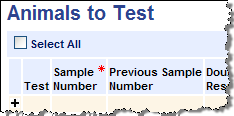
Reconcile (enter confirmatory data) Animals to Test section: The animal groups from the Import Request are displayed. The following fields are now available for data entry:
Sample Number * } Identification number of the sample that was tested.
Previous Sample Number } Previous identification number of the sample that was tested.
From the drop-down menu, select the appropriate test result: Positive, Negative, Inconclusive, or Not Tested for the following tests:
Dourine Result
Glanders Result
B.equi Result
B.caballi Result
IEA Result
Reconcile (enter confirmatory data) Laboratory Information: When the Port VMO receives the results back from the laboratory, via fax or mail, they will complete the following information:
Received By Method - From the drop-down menu, select Air Mail or Via Courier.
Courier Name - Name of courier who delivered the test results.
Date Test Completed - Date the laboratory finished testing the samples.
Name Of Serologist - Name of the person who tested the blood serum.
Depending on your role and the status of the form, click one of the following:
[Create] - To create the form and return to the Import Request Summary. The status of the form is "Initial".
[Save] - To save changes made to the form.
[Submit] - To submit the form. The status of the form changes to "Submitted".
[Close] - To close the form. The status of the form changes to "Closed".
NOTE: The form may be closed after test results are entered.
[Return] - To go the Import Request Summary.